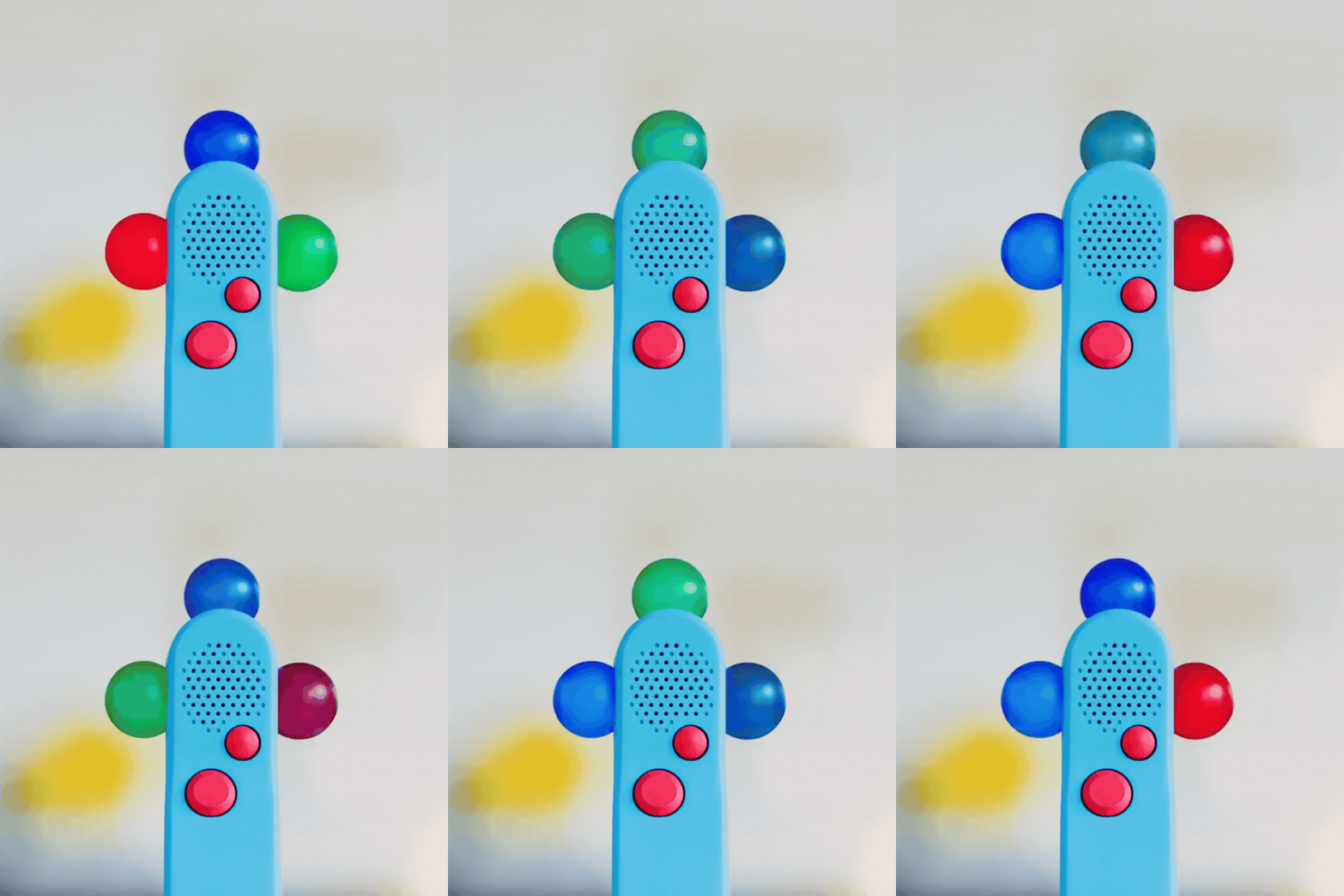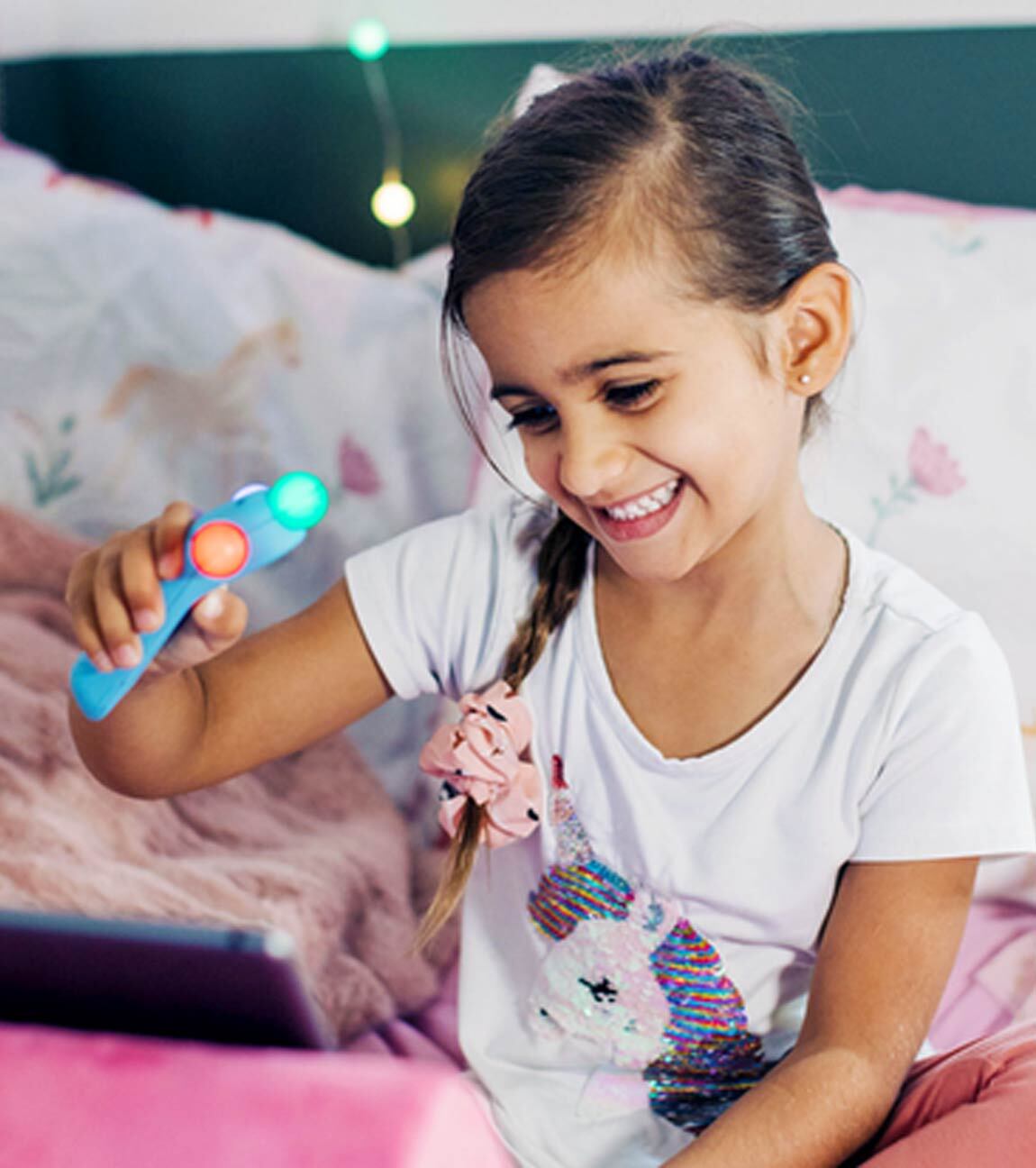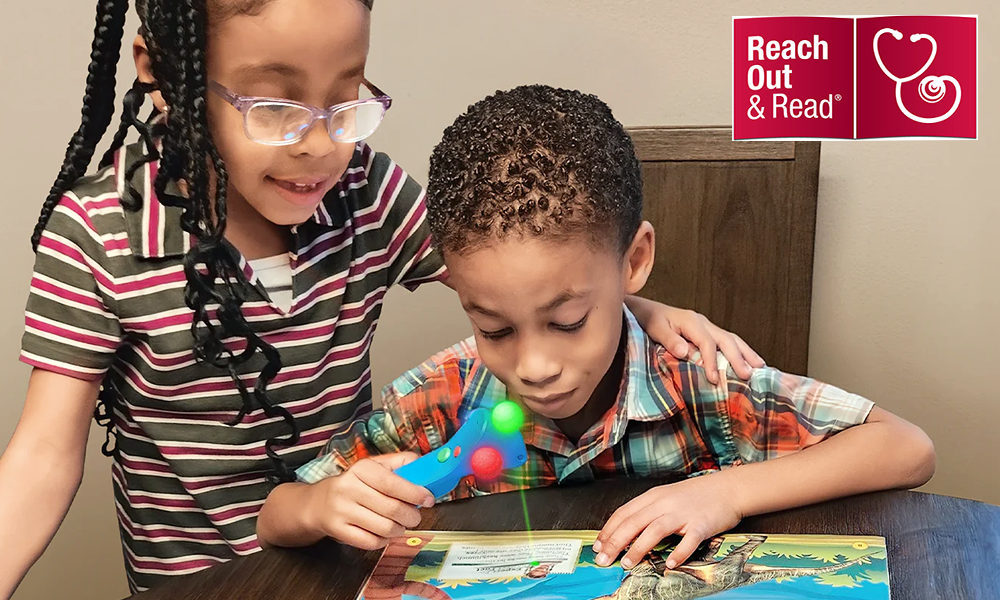

The Kibeam™ Wand is a screen-free, handheld device that brings real paper books to life with voices, sounds, and interactive learning games—making reading more fun than ever. Watch this video to learn more about how the wand works.
If your Kibeam™ Wand came with a charging dock, connect one end of the USB cable to the dock, and the other end to a charger block. Then plug the charger block into an outlet. Then, seat the wand on the dock.
If your wand does not have a charging dock, connect one end of the USB cable to the wand, and the other end to a charger block. Then plug the charger block into an outlet.
While charging, the wand's orbs can be turned off by pushing the power button and turning the wand off.
If your wand does not have a charging dock, connect one end of the USB cable to the wand, and the other end to a charger block. Then plug the charger block into an outlet.
While charging, the wand's orbs can be turned off by pushing the power button and turning the wand off.
When drained of power, the Kibeam™ Wand will take approximately 2 hours to fully charge.
While the wand is charging, the green indicator light will slowly flash. When fully charged, the green light will remain on without flashing.
Launch the Kibeam™ Wand App and turn on the Kibeam™ Wand when the app indicates. Follow the onscreen prompts to pair the wand with the app.
If the app does not locate the wand once turned on, connect the wand to a power source to enable Bluetooth. The app should now be able to locate and pair with the wand.
When the wand is updated to the latest firmware version, the app will be able to locate it without needing to plug it in.
If the app does not locate the wand once turned on, connect the wand to a power source to enable Bluetooth. The app should now be able to locate and pair with the wand.
When the wand is updated to the latest firmware version, the app will be able to locate it without needing to plug it in.
Once fully charged, the battery life is approximately 2 to 3 hours.
The Kibeam™ Wand uses a rechargeable lithium-ion battery.
If your wand has a Power button on the side, press it to turn the wand on. To turn it off, press and release the Power button.
If your wand does not have a Power button on the side, turn it on by pressing the big green button. You’ll know it’s on when you hear instructions. To turn it off, press and hold the small red button for about 4 seconds, until the orbs turn off.
While the wand is charging, the green light indicator will flash. When fully charged, it will remain solid. If no lights are on, make sure the charger is securely connected and the power source is working.
Ensure that the wand has been fully charged. If the wand still doesn’t respond, try performing a reset by inserting a paperclip into the small hole on the back of the wand until you feel a click. Then attempt to turn it on again.
It’s not recommended to use the Kibeam™ Wand while charging. Allow the device to fully charge before use for optimal performance.
A red light indicates that the wand’s battery is low and needs to be recharged soon.
Yes. Use a paperclip to gently press into the reset pinhole on the back of the wand until you feel a click. Avoid using sharp objects to prevent damage.
Wipe the wand with a soft, dry cloth. Avoid using liquids or harsh cleaners. Do not immerse the wand in water.
Yes, the Kibeam™ Wand connects to Wi-Fi through the Kibeam™ App. Plug in the wand, open the app, go to My Wands → Connect to Wi-Fi, select your network, and enter your password.
Once connected, the app will confirm successful pairing. If it fails, re-enter your Wi-Fi password and ensure the wand is plugged in and within range of the router.
Kibeam™ Wands are currently available only through educational programs and are not yet for sale to the public.
Yes, multiple wands can be added and managed under one Kibeam™ account through the Kibeam™ App.
The Kibeam™ Wand is designed for children but should be used under adult supervision for the best educational experience.
Firmware updates are handled automatically via the Kibeam™ App when your wand is connected to Wi-Fi.
When the wand is charging, the green indicator light will slowly flash. Once the wand is fully charged, the green light will remain solid.
Launch the Kibeam™ Wand App and turn on the Kibeam™ Wand when the app indicates. Follow the onscreen prompts to pair the wand with the app.
If the app does not locate the wand once turned on, connect the wand to a power source to enable Bluetooth. The app should now locate and pair with the wand.
Check that your router is online and within range. If needed, reconnect through the Kibeam™ App by repeating the “Connect to Wi-Fi” steps.
Open the Kibeam™ App, go to “My Shelf,” tap a book, then select “Add Book.” The book will automatically download to your wand once it’s connected to Wi-Fi and power.
A red orb means your wand’s battery is low. Plug the wand into its charging dock or cable until the orb turns green or blue again.
If none of the lights are turning on, try plugging the wand into the charger for 30 minutes. If still unresponsive, reset using a paperclip in the small hole underneath the wand.
Blue = Connected, Green = Charging, Red = Low Battery, Orange = Firmware Updating, White = Ready for pairing.
Yes. Each wand can be paired within the same Kibeam™ account and will sync books and settings individually.
Yes. Connect standard 3.5 mm headphones or an auxiliary cable to the jack at the base of the wand. When connected, speaker audio is muted automatically.
If your wand has a side volume button, press it to hear the current level. Press repeatedly to cycle through volume levels. Otherwise, open the Kibeam™ App and adjust using the on-screen slider under “My Wands.”
Ensure the volume isn’t set to zero and that the headphone jack is empty. If still silent, restart or reset the wand using the pinhole on its base.
Reconnect to Wi-Fi via the app. If the issue persists, reset the wand with a paperclip and restart the app before pairing again.
Keep your wand connected to Wi-Fi and power. Updates download automatically through the Kibeam™ App and install the next time your wand syncs.
Insert a paperclip into the small hole at the base of the wand and press until you feel a click. The wand will power off and reboot automatically.
Ensure Bluetooth is turned on in your device settings and that the wand is powered and plugged in. Restart both devices if needed.
Yes. Open the Kibeam™ App → “My Wands” → select your wand → tap the existing network → choose “Unpair Wi-Fi,” then connect to the new network.
Confirm Bluetooth and Location permissions are enabled for the Kibeam™ App. If the issue continues, plug the wand into power and retry pairing.
In the Kibeam™ App, open “My Shelf,” tap the downloaded book, and select “Remove.” The book will be deleted during the next sync.
No. Books are tied to the specific wand and account where they were downloaded.
Immediately power off the wand and disconnect it from any cables. Allow it to dry completely for at least 48 hours before attempting to charge or turn it on.
Store in a cool, dry place away from direct sunlight. Avoid temperatures above 95°F (35°C) or below 32°F (0°C).
The Kibeam™ Wand is designed primarily for children ages 3–8 as part of guided reading and literacy programs.
Registration happens automatically when you first pair your wand through the Kibeam™ App with your program credentials.
Currently, the wand supports English-language content. Additional languages may be available in future software updates.
In the Kibeam™ App, tap the wand icon under “My Wands.” The battery percentage is displayed at the top of the Wand Status screen.
Try a different USB cable or charging dock. If the issue continues after 24 hours, contact Kibeam™ Support for a replacement under warranty.
No. The wand only interacts with Kibeam™-enabled books marked with special icons and QR codes that correspond to your app library.
Email support@kibeam.com or call (855) 755-1299 for technical or program assistance.
No. The Kibeam™ Wand relies on the Kibeam™ App for downloading and managing interactive content.
Not at this time, but the wand contains no camera or microphone and is safe for child use.
Hold the small red button and the big green button simultaneously for 10 seconds. The wand will reboot and clear stored data.
Yes, the wand can be transported in carry-on luggage. Be sure it is powered off during flights.
Unplug the wand immediately and allow it to cool before using again. Avoid charging in direct sunlight or near heat sources.
Open the Kibeam™ App on the new device, log in with the same account, then follow the on-screen pairing instructions while the wand is plugged in and turned on.
Orange indicates that a firmware update is installing. Keep the wand plugged in and connected to Wi-Fi until the process finishes.
Yes. Press the small red button once to disable the lights. Press again to re-enable them.
The wand may have lost connection to the book or needs to recharge. Try powering off and restarting the wand, then resume reading.
Ensure your Wi-Fi signal is strong and that the wand remains within 15 feet (5 m) of the router while syncing or reading.
Not currently. Voices and sound effects are embedded in the book’s audio content.
The wand stores limited reading progress data which syncs to the Kibeam™ App for analytics and educational insights.
Books can be redownloaded from your Kibeam™ App library at any time without loss of progress.
When an update is available, the Kibeam™ App will display a notification under “My Wands.” Follow prompts to apply it automatically.
Progress is visible in the Kibeam™ App under “My Shelf.” Each book shows reading completion and activity time.
Yes. In the App → “My Wands” → select your wand → tap the name field → enter a new name → Save.
No personal identifying information is stored on the wand. Only anonymized usage metrics are collected for program improvement.
Yes, but ensure your IT administrator whitelists the Kibeam™ connection domains and allows outbound HTTPS traffic on port 443.
Unplug before cleaning. Use a dry cloth to wipe away dust or debris. Do not use liquids or compressed air.
Ensure the contacts are aligned correctly. If the issue persists, test using the direct USB cable to rule out a faulty dock.
Yes, as long as it provides 5 V at 1 A minimum. Using non-certified chargers may slow charging speed.
This is normal; the wand enters standby mode after a few minutes. You can turn it off manually using the small red button.
The wand contains a lithium-ion battery. Recycle it through an approved electronics recycling program; do not place in household trash.
Make sure you’re using the email or phone number associated with your New Worlds Reading account. If you need assistance, contact support@newworldsreading.com.
New books are added monthly as part of the New Worlds Reading program. Make sure your App notifications are enabled to receive updates.
For any Wand or App issues, visit Kibeam™ Support or email support@kibeam.com.
Only books available in your Kibeam™ App library will work with the Wand. Additional titles will be added over time.
Contact your New Worlds Reading coordinator or email support@newworldsreading.com for assistance.
Books are typically shipped once per month throughout the program period. Shipping notifications are sent via email when new books are dispatched.
No. The New Worlds Reading program provides both the books and the Kibeam™ Wand at no cost to participating families.
No. Only books with the Kibeam™ icon and embedded QR codes are compatible with the Wand.
If your Wand is malfunctioning, contact Kibeam™ Support at support@kibeam.com or (855) 755-1299 to request a replacement.
Keep the Wand plugged in during syncing and make sure it’s within range of your Wi-Fi network. If connection drops, go to the App → My Wands → Connect to Wi-Fi again.
The goal of the New Worlds Reading initiative is to foster early literacy and family reading engagement by providing access to engaging, screen-free reading experiences through Kibeam™ technology.
The program runs for the duration of the school year. Each participant receives new books periodically throughout the year.
Once your New Worlds Reading program ends, the Kibeam™ Wand and books you received are yours to keep.
Yes. Anonymous data on reading activity and engagement may be collected to help improve future literacy programs. No personal information is shared or sold.
Yes, you can continue using your Kibeam™ Wand and compatible books even after the program ends. Additional titles may become available for download through the App.
Wi-Fi is required for syncing books to your Wand, but once books are downloaded, your child can use the Wand offline.
Yes. Reach out to your New Worlds Reading coordinator or email support@newworldsreading.com to update your contact information.
Yes, new content and features are periodically added to enhance your experience. Make sure your App is updated to the latest version.
Ensure the volume isn’t muted and the headphone jack is clear. If the problem persists, restart the Wand or contact Kibeam™ Support.
For help with books, account info, or general program details, contact support@newworldsreading.com.
Yes. New books will be distributed periodically throughout the program year to participating families.
If you’re experiencing technical issues with your Wand or the App, please contact Kibeam™ Support at support@kibeam.com or call (855) 755-1299.
If you’ve misplaced a book, contact your pediatrician’s office or program coordinator to request a replacement copy.
The program aims to encourage shared reading between parents and children and support literacy development during early childhood.
The program typically runs for 2–3 months after you receive your kit. You can continue to enjoy your books and Wand afterward.
Yes. You can opt out anytime by contacting your pediatrician or the program coordinator.
Yes. Anonymous data about literacy and engagement is collected to evaluate program effectiveness. No personal data is shared or sold.
Yes. Both the Wand and books are yours to keep after the program ends.
Wi-Fi is required to sync and download books, but once downloaded, your Wand can be used offline.
Contact Kibeam™ Support at support@kibeam.com or (855) 755-1299 for technical assistance.
Yes. You can request replacement accessories by reaching out to Kibeam™ Support or your program administrator.
Only books that are Kibeam™-enabled and appear in your Kibeam™ App library will work with your Wand.
Charging the Kibeam™ Wand
Turning the Kibeam™ Wand On & Off
Kibeam™ Wand Basics
Reading with Your Kibeam™ Wand
Setting the Volume on Your Kibeam™ Wand
Download the Kibeam™ Wand App - Android
Download the Kibeam™ Wand App - Apple
Set Up Your Kibeam™ Wand
Add a Book to Your Kibeam™ Wand
Still Have Questions? Send Us a Message and We Will be Happy to Assist!
-
Support Hours
Phone: (855) 755-1299 -
Mailing Address
1440 Broadway Ste 200 Oakland, CA 94612 -
Follow us